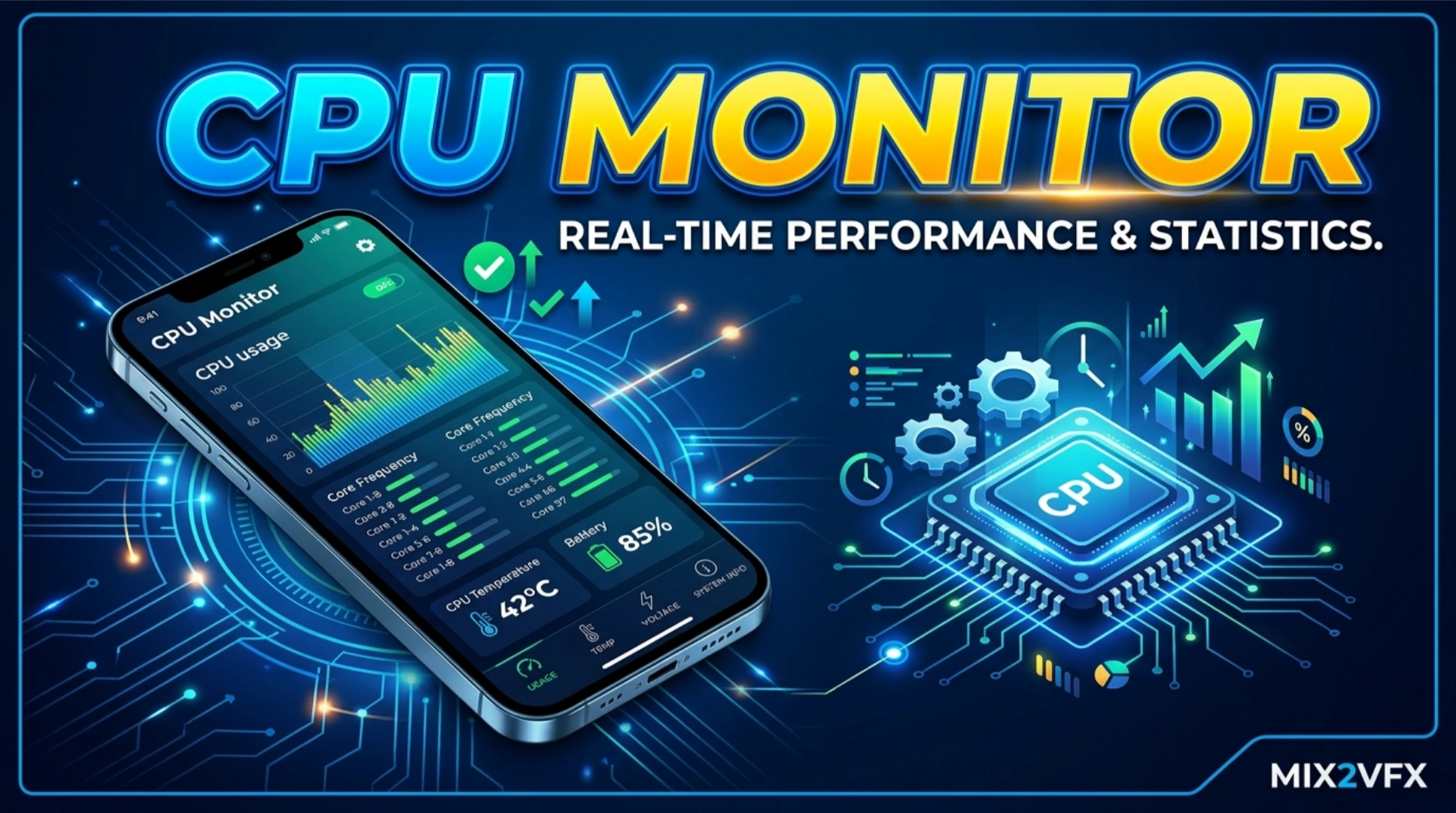
CPU Monitor – Temperature Tester for Android
CPU Monitor apps measure your device processor temperature, usage, and performance. You monitor CPU load, clock speed, and battery temperature. You identify overheating issues. You track performance during gaming or heavy use. You diagnose system slowdowns. The app displays real-time data in graphs and numbers.
What is a CPU Monitor App?
A CPU Monitor app reads system sensors. It accesses your device processor and battery data. The app shows CPU temperature in Celsius and Fahrenheit. It displays current CPU usage percentage. It shows each core’s frequency. It displays RAM usage and memory available. The app does not collect personal data. The app works offline. App size is 5 to 15 MB. Requires Android 5.0 or higher.
Core Purpose
You prevent overheating damage. You optimize device performance. You diagnose hardware issues. You monitor resource usage. You extend device lifespan.
Core Features
Temperature Monitoring
The app displays CPU temperature. It shows battery temperature. It shows GPU temperature (if supported). Temperatures update every second. High temperature alerts are available.
CPU Usage
The app shows total CPU usage percentage. It breaks usage by core. It shows frequency for each core. It displays idle, user, and system time.
Clock Speed
The app shows current CPU frequency. It displays minimum and maximum frequencies. It shows frequency scaling in real time.
RAM and Memory
The app displays total RAM and available RAM. It shows internal storage usage. It shows memory used by system and apps.
Battery Information
The app shows battery percentage and voltage. It displays battery health status. It shows charging status and temperature.
Process List
The app lists running processes. It shows CPU usage per app. You identify power-hungry apps. You close them from the app.
Graphical History
The app graphs temperature over time. You see trends during use. You identify peak temperatures. You compare different usage scenarios.
Widget Support
You place a widget on your home screen. The widget shows temperature and usage. You monitor without opening the app.
Notification Alerts
You set alerts for high temperature. The app notifies you when CPU exceeds 60°C. You stop intensive tasks.
Top CPU Monitor Apps
CPU Monitor – Temp & Device Info
This app is the most comprehensive. Over 1 million downloads. Rating 4.3 stars. It shows temperature, usage, and frequency. It includes a process manager. It supports widgets.
CPU Temperature Monitor
This app focuses on temperature. It displays CPU and battery temperature. It includes a history graph. Rating 4.2 stars.
Device Info HW
Device Info HW shows detailed hardware data. It includes temperature and usage. It supports sensors and tests. Rating 4.6 stars.
System Monitor
System Monitor displays CPU, RAM, and network usage. It includes a floating window. It supports real-time graphs. Rating 4.1 stars.
Simple System Monitor
Simple System Monitor is lightweight. It shows CPU and temperature. It includes a process list. Rating 4.4 stars.
How to Download and Install
Play Store Method (Recommended)
Open the Google Play Store. Search for “CPU Monitor” or “CPU Temperature.” Select an app with high ratings. Tap install. Wait for completion. Open the app. Grant required permissions.
APK Method
You download the APK from third-party sites. This method carries risks. Enable unknown sources in your settings. Download the APK from a trusted site like APKMirror. Tap the APK file to install. Grant permissions during installation.
Why Use the Play Store Version
The Play Store version updates automatically. The Play Store version includes Google’s security checks. The Play Store version is verified. The APK version may contain malware. The APK version may not update. Use the Play Store version for safety.
Step-by-Step Usage Instructions
Step 1: Open the App
Launch your chosen CPU monitor app. The app requests sensor and storage permissions. Grant all permissions for full functionality.
Step 2: Read Current Temperature
The main screen displays CPU temperature. It shows battery temperature. The reading updates every second. Normal temperature is 30 to 45°C for idle. 45 to 60°C for active use. 60°C and above is overheating.
Step 3: Check CPU Usage
The app shows total CPU usage percentage. It displays individual core usage. High usage (80%+) indicates heavy load. Low usage (under 20%) indicates idle.
Step 4: View Clock Speed
The app displays current CPU frequency. It shows minimum and maximum. The frequency scales with load. High frequency (2.0 GHz+) for active tasks. Low frequency (0.5 GHz) for idle.
Step 5: Monitor Process List
Go to the process tab. See which apps use CPU. Identify power-hungry apps. Close unnecessary apps from the list.
Step 6: Set Temperature Alerts
Go to settings. Enable “High Temperature Alert.” Set the threshold (e.g., 60°C). The app notifies you when temperature crosses the threshold.
Step 7: Use the Widget
Add the widget to your home screen. Long-press on your home screen. Select “Widgets.” Choose the CPU monitor widget. Place it on your screen.
Step 8: View History
Go to the history or graph tab. See temperature trends over time. Identify patterns (e.g., gaming causes high temperature). Adjust usage accordingly.
Interpreting Temperature and Usage Data
Normal Temperature Ranges
Idle (screen off): 25 to 35°C.
Light use (browsing, messaging): 35 to 45°C.
Heavy use (gaming, video streaming): 45 to 55°C.
Overheating (reduce usage): 60°C and above.
Actionable Steps for High Temperature
Close background apps. Stop gaming or video recording. Remove the phone case. Place the device in a cool area. Turn off Wi-Fi, Bluetooth, and GPS if not needed. Reduce screen brightness. Restart your device.
Normal CPU Usage Ranges
Idle: 5% to 20%.
Light use: 20% to 50%.
Heavy use: 50% to 80%.
Sustained 90%+ indicates a runaway app. Restart or uninstall the offending app.
Safety and Privacy Considerations
Malware Risk with APK
Unofficial APKs may contain malware. The malware can steal your data. It can display unwanted ads. Only download from trusted sources like APKMirror. Scan the APK with antivirus software.
Privacy Concerns
CPU monitor apps require no sensitive permissions. They do not access contacts or messages. They do not upload your data. Avoid apps that request unnecessary permissions.
Battery Consumption
The app uses minimal battery (1% to 2% per day). Background monitoring is low-impact. Close the app if you do not need it.
Overheating Warnings
The app provides warnings. Do not ignore high temperature alerts. Overheating damages the battery. It also reduces performance.
Pros & Cons
Pros
The app is free and lightweight. The app provides real-time data. The app helps prevent overheating. The app identifies power-hungry apps. The app includes widgets and alerts.
Cons
The APK version may contain malware. The app may not work on all devices. The free version contains ads. The app is not a substitute for hardware diagnostics. The app does not fix hardware issues.
Conclusion
A CPU Monitor app is a useful diagnostic tool. You monitor your device temperature and performance. You prevent overheating damage. You identify resource-hungry apps. Use the Play Store version for security. Set temperature alerts for safety. Use widgets for easy access. The app is suitable for all users, especially gamers and heavy users. Download a CPU monitor app today.