Introduction
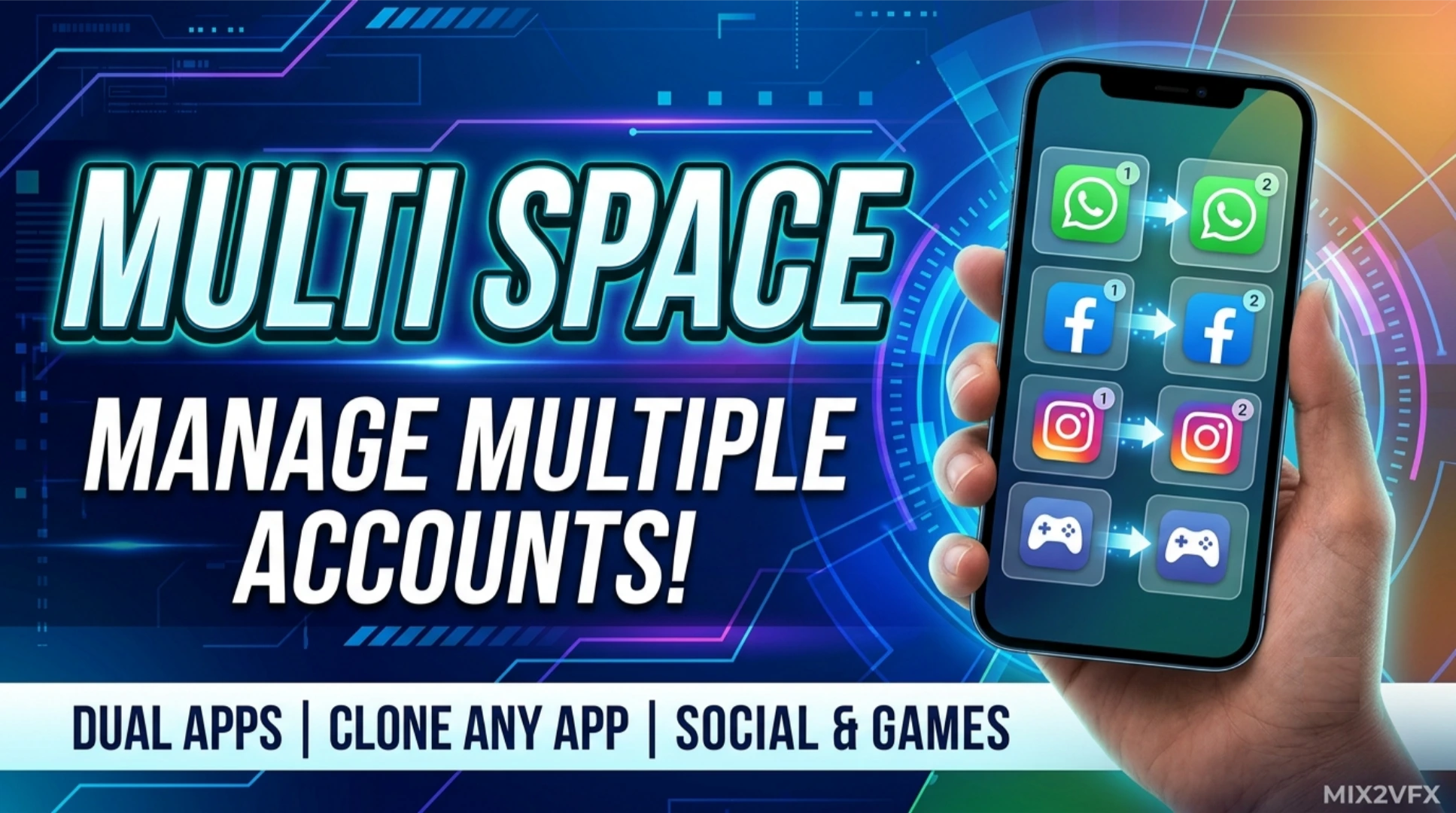
Multi Space is an Android application. It creates cloned versions of your existing apps. You run multiple accounts on the same device. You use two WhatsApp accounts. You use two Facebook accounts. You play multiple game accounts simultaneously. The app works without rooting your device. The developer is LBE Tech.
What is Multi Space?
Multi Space is a virtual environment. It isolates your cloned apps from the main system. The app creates a separate storage space. You install the same app twice. Each instance has its own data. You log in with different credentials. The app supports most popular social media and gaming apps. The app has over 50 million downloads on the Google Play Store. Average user rating is 4.2 stars. App size is approximately 25 MB. Requires Android 5.0 or higher.
Use Cases
You separate work and personal accounts. You manage multiple social media profiles. You play games with multiple characters. You test apps without affecting your main installation. You share a device with family members while keeping separate accounts.
Core Features
App Cloning
You clone any installed application. The clone appears with a small badge. The clone runs independently. You open both instances side by side. You use split-screen mode for simultaneous operation.
Account Management
You add, remove, or switch accounts quickly. The app provides a dashboard for all clones. You see which accounts are active. You open a clone directly from the dashboard.
Notification Management
You receive notifications from cloned apps. The notifications appear separately. You distinguish between accounts by the app icon. You configure notification settings per clone.
Privacy Protection
You lock the entire Multi Space app with a PIN or pattern. You lock individual cloned apps with separate passwords. The app uses encryption for stored data. The encryption prevents other apps from accessing your cloned data.
File Isolation
Cloned apps store their files in a separate folder. Your main gallery does not show cloned photos. Your main contacts do not mix with cloned contacts. This separation keeps your personal and work data distinct.
Multi-Instance Support
You clone the same app multiple times. You run three or more WhatsApp accounts. You run four game accounts. The number of clones depends on your device memory.
How to Download and Install
Play Store Method (Recommended)
Open the Google Play Store. Search for “Multi Space.” Select the app by LBE Tech. Tap install. Wait for the download to complete. The app installs automatically. Grant all required permissions.
APK Method
You also download the APK from third-party sites. This method carries risks. Enable unknown sources in your settings. Download the APK from a trusted site like APKMirror. Tap the APK file to install. Grant permissions during installation.
Why Use the Play Store Version
The Play Store version updates automatically. The Play Store version includes Google’s security checks. The Play Store version is verified by Google. The APK version may contain malware. The APK version may not update. Use the Play Store version for safety.
Step-by-Step Usage Instructions
Step 1: Open Multi Space
Launch the app from your app drawer. The app displays a welcome screen. The screen shows available apps to clone.
Step 2: Add an App
Tap the plus icon. The app shows a list of your installed apps. Select the app you want to clone. Tap “Add” to create the clone. The cloning process takes 10 to 30 seconds.
Step 3: Open the Cloned App
Tap the cloned app icon inside Multi Space. The app opens like the original. You log in with your second account. You use separate credentials. You run both instances simultaneously.
Step 4: Manage Accounts
Return to the Multi Space dashboard. Tap the three-dot menu on a cloned app. Options include “Clear data,” “Uninstall,” and “Lock.” Use “Lock” to password-protect the clone.
Step 5: Import Files
You import photos or documents to the cloned app. Tap the import button in Multi Space. Select files from your device. The files copy to the isolated storage. Cloned apps access these files without seeing your main files.
Step 6: Close Multi Space
You exit Multi Space. The cloned apps continue running in the background. You receive notifications from cloned apps. You reopen Multi Space to access them again.
Performance and Resource Usage
Memory Usage
Each clone consumes additional RAM. The amount depends on the app. Social media apps use 100 to 300 MB each. Games use 300 to 600 MB each. Multiple clones slow your device.
Storage Space
Each clone creates a separate data folder. The folder size equals the app size plus user data. Cloning a 100 MB app uses 100 MB extra. User data adds more over time.
Battery Drain
Cloned apps run in the background. They consume battery like the original apps. Running two WhatsApp accounts uses double the power. Running two games drains battery faster.
CPU Usage
Cloned apps use CPU resources. The virtual environment adds overhead. Performance may decrease on older devices. You notice lag when running multiple clones.
Recommendations
Clone only essential apps. Limit the number of clones to 3 or 4. Close unused clones to save resources. Monitor your battery and memory usage.
Pros and Cons
Pros
The app is easy to set up and use. The app supports a wide range of applications. The app isolates data securely. The app includes a privacy lock. The free version is functional.
Cons
Clones consume significant memory and battery. The free version includes ads. The app requires many permissions. The APK version carries security risks. Some apps do not support cloning.
Conclusion
Multi Space is a practical tool for managing multiple accounts. The app is reliable and widely used. You separate work and personal accounts. You manage multiple game characters. You protect your privacy with the lock feature. Use the Play Store version for security. Clone only essential apps to save resources. Monitor your device performance. Remove clones you no longer need. The app is suitable for social media users and gamers.